
When people talk about computers, TVs, laptops, and smartphones, they often use the words screen, monitor, and display as if they mean exactly the same thing. In everyday conversation, that usually causes no problem. However, these terms have slightly different meanings when you look at computer hardware, visual technology, and electronic devices more closely.
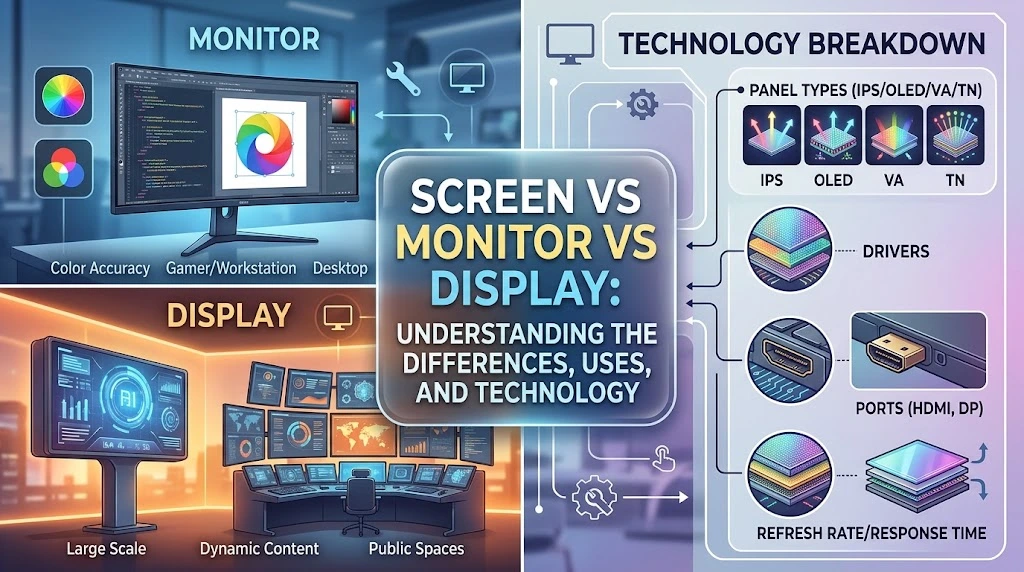
Understanding the difference between a screen vs monitor vs display can help you choose the right device, describe hardware accurately, and understand technical specifications. A screen generally refers to the visible surface where images, text, videos, and graphics appear. A monitor is usually a separate output device connected to a computer or another source. A display is the broader technical term for the technology or component that produces the visual image.
The distinction becomes clearer when you consider LCD screens, LED displays, OLED panels, computer monitors, laptop screens, smartphone displays, and television screens. A monitor contains more than just its display panel, while a display can refer specifically to the image-producing component inside a device.
These terms also connect with important concepts such as display resolution, refresh rate, pixel density, screen size, aspect ratio, color accuracy, brightness, and response time. Once you understand what each term actually describes, comparing different display technologies becomes much easier.
Whether you’re buying a gaming monitor, upgrading a desktop display, comparing a laptop screen, or simply trying to understand computer terminology, knowing the difference between these three words gives you a much clearer picture of how visual devices work.
Screen vs Monitor vs Display at a Glance
Before diving into the technology, here’s the practical difference:
| Term | What It Usually Means | Common Example | Main Focus |
| Screen | The visible viewing surface | Phone screen | What you look at |
| Monitor | A dedicated display device | 27-inch desktop monitor | Complete hardware |
| Display | Visual-output technology or component | OLED display | How visual information is presented |
There isn’t a universal rule that forces manufacturers and users to use these words in exactly one way. Technical language and everyday English overlap considerably.
For example, someone might say, “My monitor has a great screen.” That’s perfectly natural. The monitor describes the complete product while the screen describes its visible viewing area.
Likewise, a manufacturer might advertise an “OLED display” inside a phone. Here, display refers to the technology responsible for producing the image.
That overlap explains most of the confusion surrounding screen vs monitor vs display.
Understanding Visual Technology in Daily Life
Look around for a few seconds and you’ll probably find several displays.
Your phone has one. Your laptop has one. Your television has one. Your car may have several. A smartwatch, gaming console, ATM, medical device, digital billboard, and aircraft cockpit can all use display technology.
Yet these devices don’t all qualify as monitors.
That’s because the three terms describe different aspects of visual technology.
A screen emphasizes the viewing surface. A monitor emphasizes the complete standalone device. A display emphasizes the technology or system used to present visual information.
This distinction isn’t merely academic.
Imagine you’re shopping for a desktop computer. If you need a separate device connected to your PC, searching specifically for a computer monitor makes sense. If you’re researching the technology inside that monitor, you’ll probably compare IPS, VA, OLED, LCD, Mini-LED, resolution, refresh rate, and HDR.
If you’re talking about your phone, you’d probably say, “The screen is cracked,” rather than “The monitor is cracked.”
Context does most of the heavy lifting.
Screen: The Broadest Everyday Term
A screen generally means the surface or area where visual information appears.
It’s the word people use naturally in everyday conversation:
- “My phone screen is cracked.”
- “The laptop screen is too dim.”
- “Don’t stare at the screen all night.”
- “The TV screen looks huge.”
- “There’s a scratch across the screen.”
The word doesn’t necessarily tell you what technology creates the image.
That matters because a screen can be associated with many different technologies and devices. A projection screen, for example, doesn’t create an image at all. A projector sends light toward it and the screen reflects that light toward viewers.
An electronic screen is different because it forms part of a display system that produces or controls the visible image.
Historical Evolution of Screens
The concept of a screen existed long before modern flat-panel displays.
Traditional projection screens provided a surface for reflected or projected images. Later, CRT televisions and computer displays brought electronic image generation into the device itself.
CRT technology dominated television and desktop computing for decades. It used an electron beam and phosphor-coated glass to create images.
Then LCD technology transformed the market.
LCD panels made it possible to build much thinner televisions, laptops, monitors, and other devices. LED backlighting later became common in LCD products, making modern flat-panel displays thinner and more efficient than many older backlit designs.
OLED introduced another major change because its pixels can emit their own light rather than relying on a conventional LCD backlight.
Today, the word screen remains useful regardless of whether you’re looking at LCD, OLED, Mini-LED-backed LCD, or another display technology.
Types of Screens
You can encounter screens in many forms:
- LCD screens in laptops, monitors, televisions, and appliances
- OLED screens in smartphones, televisions, laptops, and premium monitors
- E-paper screens in many e-readers
- Projection screens in theaters and presentation environments
- Touchscreens in phones, tablets, vehicles, kiosks, and industrial equipment
- Curved screens in some monitors and televisions
- Flexible displays used in certain foldable devices
The word screen tells you relatively little about the underlying technology. That’s actually one of its strengths.
It’s broad and easy to understand.
Screens Beyond Computers
Screens aren’t limited to traditional computing.
Modern examples include:
- Car infotainment systems
- Digital instrument clusters
- Smart appliances
- Point-of-sale terminals
- Medical equipment
- Airport information boards
- Digital signage
- Smartwatches
- Gaming handhelds
- Virtual reality headsets
A car dashboard may contain multiple displays while having no traditional computer monitor in the everyday sense.
That’s why screen works so well as a general-purpose term.
Monitor: The Specialized Computing Device
A monitor usually refers to a complete, standalone visual-output device designed primarily to receive and present video information.
When someone says, “I bought a new monitor for my PC,” they’re normally talking about a dedicated desktop display.
Unlike a phone or laptop display, a conventional desktop monitor is not permanently integrated into the computer that generates the content.
You can connect it, disconnect it, replace it, mount it on an arm, or use several monitors with one computer.
That’s the key practical distinction.
What Sets a Monitor Apart?
A monitor typically combines several components into one product:
- Display panel
- Image-processing and controller electronics
- Video inputs
- Power circuitry
- Housing
- Controls
- Stand or mounting system
- Sometimes speakers
- Sometimes a USB hub
- Sometimes a webcam or microphone
- Sometimes a KVM switch
So when you buy a monitor, you’re buying much more than a panel.
The panel is responsible for producing the visible image. The rest of the hardware lets the panel communicate with your computer and function as a complete device.
Components of a Modern Monitor
The display panel sits at the center of the system.
Depending on the monitor, that panel could use IPS, VA, TN, OLED, or another technology.
The monitor also needs electronics to interpret the incoming video signal. Those electronics control how pixels are driven and how the monitor handles features such as refresh rates, scaling, color modes, HDR, and other functions.
Then there are the physical connections.
A modern monitor might include:
- HDMI
- DisplayPort
- USB-C
- USB-A ports
- Headphone output
- Ethernet on some USB-C docking monitors
- Audio inputs on certain models
High-performance display interfaces matter because resolution, refresh rate, color depth, and HDR can require substantial bandwidth. VESA notes that DisplayPort 2.x supports very high-resolution and high-refresh configurations, including 8K at 60 Hz under specified conditions.
Roles of Monitors in Computing
Monitors serve many different purposes.
Office Work
Office monitors generally emphasize:
- Sharp text
- Comfortable viewing
- Good ergonomics
- Appropriate screen size
- High enough resolution
- Useful connectivity
A 27-inch 1440p monitor can provide considerably more workspace than a basic 1080p model without requiring the physical footprint of a very large display.
Gaming
Gaming monitors often emphasize:
- High refresh rates
- Low input latency
- Fast pixel response
- Variable refresh rate
- Appropriate resolution
- Motion clarity
A 240 Hz monitor, for example, can refresh the image far more frequently than a 60 Hz monitor. However, the computer or console also needs to generate enough frames to take advantage of that capability.
Buying a high-refresh monitor doesn’t automatically make every game run at a high frame rate.
Creative Work
Photographers, video editors, designers, and colorists may prioritize:
- Color accuracy
- Color gamut
- Calibration
- Consistent brightness
- Resolution
- HDR performance
For these users, a display with a massive refresh rate may be less important than accurate and predictable color reproduction.
Connectivity Explained
Connections are easy to overlook until the monitor refuses to run at the desired resolution or refresh rate.
HDMI remains extremely common across computers, consoles, televisions, and monitors.
DisplayPort is particularly common in PC environments and supports high-performance display configurations. VESA describes DisplayPort as a scalable interface designed for high resolutions, high refresh rates, multiple displays, and deeper color capabilities.
USB-C can carry video on supported systems while also handling data and power. That makes it especially useful for laptops and docking setups.
However, the connector alone doesn’t tell the whole story.
Two USB-C ports can have very different capabilities. The same goes for HDMI and DisplayPort implementations.
Always check the actual specifications of the computer, graphics card, monitor, and cable when planning a high-resolution or high-refresh setup.
Display: The Technology Behind Visual Output
The word display is broader than monitor.
A display is any system or technology used to present visual information. In technical discussions, it can refer to the panel, display technology, or visual-output system.
That’s why phrases such as these sound completely normal:
- OLED display
- LCD display
- High-resolution display
- Touch display
- Automotive display
- Display panel
- External display
- Display technology
A smartphone has a display. A smartwatch has a display. A desktop monitor has a display.
But a smartphone isn’t normally called a monitor.
That’s the important distinction.
Display vs Screen vs Monitor
A useful mental model looks like this:
Monitor → complete dedicated device
Display → visual-output technology or system
Screen → visible viewing surface
These aren’t rigid engineering boundaries. Modern products combine components in complicated ways.
Still, the model works extremely well for everyday communication.
Consider a smartphone.
Its screen is the surface you touch and look through.
Its display is the image-producing technology, such as an OLED panel.
The smartphone itself is the complete device.
It isn’t normally called a monitor because its primary identity isn’t that of a standalone computer display.
Now consider a desktop setup.
The monitor is the complete external product. Its display produces the image. Its screen is the visible area you look at.
One object can therefore involve all three terms.
Key Display Technologies
Display technology determines how an image becomes visible.
CRT
Cathode-ray-tube displays were once common in televisions and computer monitors.
They used an electron beam to excite phosphors on the inside of a glass tube.
CRT monitors could deliver excellent motion characteristics and became famous among enthusiasts for their distinctive image behavior. Their enormous depth, weight, power consumption, and manufacturing complexity eventually made flat-panel technologies much more practical.
LCD
LCD stands for Liquid Crystal Display.
An LCD uses liquid crystals to control the passage of light through the panel. Unlike OLED, conventional LCD technology requires a separate light source.
Modern LCD displays commonly use LED backlighting.
That leads to one of the most persistent technology misconceptions: LED monitors are generally LCD monitors with LED backlights.
“LED TV” or “LED monitor” often describes the backlight rather than an entirely different panel category.
IPS
IPS is an LCD panel technology.
It became popular because it can provide strong viewing angles and good color performance.
IPS displays are common in:
- Office monitors
- Creative-work monitors
- Laptops
- Gaming monitors
- General-purpose displays
VA
VA, or Vertical Alignment, is another LCD panel family.
VA panels are known for strong native contrast compared with many conventional IPS displays. That can make them attractive for movie watching, gaming, and general entertainment.
TN
TN, or Twisted Nematic, was historically popular in fast gaming monitors because manufacturers could achieve high refresh rates and fast response characteristics at relatively low cost.
However, TN generally has weaker viewing angles and image characteristics than many modern IPS and OLED alternatives.
OLED
OLED stands for Organic Light-Emitting Diode.
Unlike a conventional LCD, an OLED panel doesn’t need a traditional backlight to illuminate each pixel.
Individual pixels can emit their own light.
When a pixel needs to display black, it can be turned off. That creates exceptionally deep blacks and extremely high contrast.
OLED also offers very fast pixel response.
Its trade-offs include cost, brightness behavior depending on the panel and usage, and the possibility of image retention or burn-in under certain usage patterns.
Mini-LED
Mini-LED is primarily a backlighting approach used with LCD panels.
Instead of relying on relatively large conventional LED backlights, Mini-LED systems use many smaller LEDs divided into local-dimming zones.
That allows the backlight to control different areas of the image more precisely.
The result can be much stronger HDR performance than a basic edge-lit LCD.
However, Mini-LED remains an LCD-based approach. It isn’t the same technology as OLED.
MicroLED
MicroLED takes a different approach.
It uses microscopic light-emitting diodes as individual pixels, allowing an emissive architecture without a conventional LCD layer.
The technology has significant potential but remains much less common and more expensive than mainstream LCD and OLED products.
How Displays Render Images
The process may look instantaneous to your eyes, but several things happen before an image appears.
A simplified sequence looks like this:
Computer / Console / Device
↓
Video Signal
↓
Display Controller
↓
Pixel Instructions
↓
Panel Electronics
↓
Pixels Produce Light
↓
Visible Image
A graphics processor generates or processes image data.
The data travels through a suitable interface.
The display electronics interpret the signal and determine what each pixel should show.
The panel then changes the state of its pixels.
Your eyes receive the resulting light.
This happens rapidly enough that you experience a continuous image rather than individual updates.
Comparing Screens, Monitors, and Displays
Here’s the distinction in practical terms:
| Feature | Screen | Monitor | Display |
| Refers to visible area | Usually | Yes | Sometimes |
| Refers to complete hardware | Sometimes | Usually | Sometimes |
| Refers to panel technology | Rarely | Sometimes | Frequently |
| Used for smartphones | Yes | No | Yes |
| Used for laptops | Yes | Usually not | Yes |
| Used for desktop PCs | Yes | Yes | Yes |
| Used for TVs | Yes | Sometimes | Yes |
| Technical terminology | General | Hardware-specific | Very common |
The most important point is that these words overlap.
Trying to create an absolute boundary between them can actually make the explanation less accurate.
For example, a person can correctly say, “I need a larger screen for my computer.”
Another person might say, “I need a larger monitor.”
Both sentences can describe the same purchase.
The second sentence is simply more specific if the user means a standalone desktop device.
Screen vs Monitor: The Most Common Confusion
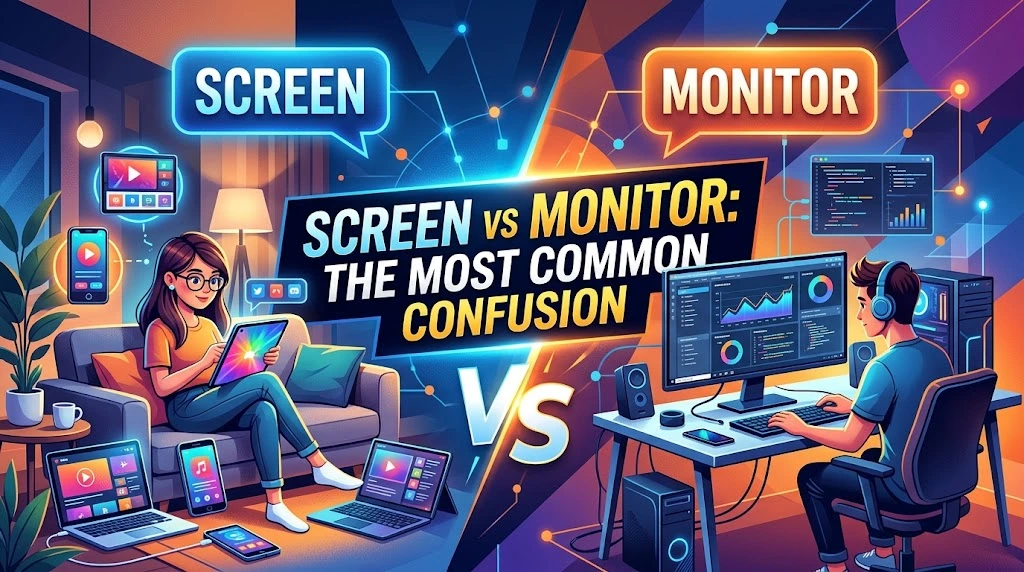
The difference becomes clearer when you compare a laptop with a desktop PC.
A laptop has an integrated screen. You can’t normally remove it and use the laptop without that display in the way you can disconnect an external desktop monitor.
A desktop computer can operate with a separate monitor.
So:
Laptop: integrated display and screen
Desktop PC: separate monitor containing a display and screen
There are exceptions and specialized systems, but this distinction works for everyday computing.
Is Every Monitor a Screen?
A monitor has a screen or visible display area.
So calling the visible part of a monitor its “screen” is perfectly normal.
For example:
“The monitor has a 27-inch screen.”
There’s no contradiction.
The monitor describes the whole device while the screen describes the visible area.
Is Every Screen a Monitor?
No.
A phone screen isn’t normally a monitor.
Neither is a tablet screen, television screen, laptop screen, or smartwatch screen.
The word screen is broader.
That’s why saying “every screen is a monitor” creates unnecessary confusion.
Display Technology vs. Display Specifications
Choosing a display requires more than knowing whether it’s LCD or OLED.
Specifications determine how that technology behaves in real use.
Resolution
Resolution describes the number of pixels available across the image.
Common computer resolutions include:
- 1920 × 1080: Full HD
- 2560 × 1440: QHD
- 3840 × 2160: 4K UHD
A 4K display contains four times as many pixels as a 1080p display in the same 16:9 aspect ratio.
However, more pixels aren’t automatically better.
Screen size and viewing distance matter too.
A 4K image on a large display can provide noticeably greater detail. On a small display viewed from a normal distance, the difference may be harder to appreciate.
Refresh Rate
Refresh rate is measured in hertz.
A 60 Hz display refreshes up to 60 times per second. A 120 Hz display can refresh up to 120 times per second.
Higher refresh rates can make motion appear smoother and can reduce the interval between displayed frames.
Gamers often pay close attention to this specification.
Response Time
Response time describes how quickly pixels can change between states.
It shouldn’t be confused with input latency.
A monitor can have a fast response time yet still have noticeable system or processing latency depending on the entire signal chain.
Brightness
Brightness affects how easily you can see the image, particularly in bright environments.
HDR performance makes brightness more complicated because good HDR requires more than a large peak-brightness number.
Contrast, local dimming, black levels, color volume, tone mapping, and HDR support all contribute to the result.
VESA’s DisplayHDR standards specifically address multiple aspects of HDR performance rather than treating brightness as the only measurement.
Contrast
Contrast describes the difference between the darkest and brightest parts of an image.
OLED has a major structural advantage because individual pixels can turn off.
LCD displays rely on a backlight, so even advanced local-dimming systems can behave differently.
Color Gamut
Color gamut describes the range of colors a display can reproduce.
Common color spaces include:
- sRGB
- DCI-P3
- Adobe RGB
A wider gamut can be valuable for professional creative work, but wider isn’t automatically more accurate.
A display can reproduce a broad range of colors while still requiring calibration for accurate color work.
HDR
HDR, or High Dynamic Range, aims to reproduce a broader range of brightness and color than standard dynamic-range content.
A convincing HDR experience depends on the display’s actual capabilities.
A monitor that merely accepts an HDR signal doesn’t necessarily provide excellent HDR image quality.
Choosing Between a Monitor, TV, and Other Displays
The right choice depends heavily on what you do.
For Office Work
Look for:
- Comfortable size
- Sharp text
- Appropriate resolution
- Adjustable stand
- Low-glare characteristics if needed
- USB-C if you use a laptop
- Multiple inputs if you switch devices
A 27-inch QHD monitor can be a practical middle ground for many desktop tasks.
If you spend hours reading documents or writing code, ergonomics can matter more than flashy specifications.
For Gaming
Focus on:
- Refresh rate
- Response behavior
- Input latency
- Variable refresh rate
- Resolution
- GPU capability
- HDR if desired
- Appropriate connectivity
Don’t buy a 4K 240 Hz monitor simply because the numbers look impressive.
Your graphics hardware needs to deliver the performance necessary to benefit from those specifications.
For Photo and Video Editing
Color becomes the star of the show.
Look for:
- Strong color accuracy
- Suitable color gamut
- Calibration options
- Stable brightness
- High resolution
- Appropriate HDR support
- Good viewing consistency
For professional work, a factory claim such as “99% of a color gamut” doesn’t tell the entire story. Accuracy and calibration matter too.
For Movies
A television may make more sense than a traditional computer monitor when your priority is large-screen entertainment.
Pay attention to:
- Contrast
- HDR
- Black levels
- Screen size
- Viewing distance
- Room lighting
- Supported content formats
For Portable Use
Portable monitors and laptop displays have different priorities.
Weight, power consumption, brightness, USB-C connectivity, and durability can matter more than maximum refresh rate.
How to Choose the Right Screen or Monitor
Instead of starting with the product label, start with your workload.
Match the Device to Your Primary Use
| Your Main Use | Prioritize |
| Office work | Resolution, text clarity, ergonomics |
| Programming | Workspace, resolution, text sharpness |
| Gaming | Refresh rate, response, VRR |
| Photo editing | Color accuracy, gamut, calibration |
| Video editing | Resolution, color, HDR |
| Movies | Contrast, HDR, size |
| Laptop docking | USB-C, power delivery, connectivity |
| Console gaming | HDMI capabilities, VRR, latency |
| Reading | Pixel density, glare control, comfort |
Consider Pixel Density
Two displays can have the same resolution but look very different.
For example, 1920 × 1080 on a 24-inch screen produces a much higher pixel density than 1920 × 1080 on a 32-inch screen.
That’s why resolution should never be considered without screen size.
Check Your Ports
Before buying a monitor, inspect both ends of the connection.
Ask:
- Does my computer have HDMI?
- Does it have DisplayPort?
- Does USB-C support video output?
- What refresh rate can the port support?
- Does the monitor support the same feature?
- Do I need a specific cable?
A monitor may advertise an impressive maximum refresh rate while your computer’s available connection can’t drive it at the required resolution and color settings.
Don’t Ignore Ergonomics
A brilliant display can still be uncomfortable if you spend eight hours looking at it from the wrong position.
Useful features include:
- Height adjustment
- Tilt
- Swivel
- Pivot
- VESA mounting
- Appropriate viewing distance
The stand isn’t glamorous.
It can still make a huge difference.
Read More : Gases or Gasses: A Complete Guide to the Correct Spelling and Usage
Real-World Case Studies
Case Study: Student or Office Worker
Suppose you spend your day writing documents, browsing research, answering email, and using spreadsheets.
A massive 4K gaming monitor with an extreme refresh rate may offer features you’ll rarely use.
Instead, you might benefit more from:
- A sharp 27-inch display
- QHD or 4K resolution
- Comfortable brightness
- A height-adjustable stand
- USB-C connectivity if you’re using a laptop
Here, productivity and comfort matter more than headline specifications.
Case Study: PC Gamer
Now imagine a competitive gamer with a powerful graphics card.
The priorities change.
A high-refresh monitor can make sense because fast-moving games can benefit from higher refresh rates and responsive pixel behavior.
However, resolution still matters.
A player who wants detailed cinematic visuals might prefer 4K. Someone focused on competitive frame rates may prefer a lower resolution paired with a much higher refresh rate.
Neither approach is universally correct.
The hardware and games determine what makes sense.
Case Study: Content Creator
A photographer may care deeply about color accuracy.
A video editor may need a combination of resolution, color gamut, HDR performance, and screen real estate.
In both cases, a monitor’s color characteristics can matter more than its gaming-oriented refresh rate.
That’s a perfect example of why shopping by specification alone can lead you down the wrong path.
Case Study: Using a TV as a Monitor
A TV can absolutely serve as a computer display.
But the experience depends on the television and your intended use.
For desktop work, consider:
- Pixel density
- Viewing distance
- Input latency
- Chroma handling
- Refresh rate
- Text clarity
- Operating-system scaling
A large 4K TV may look fantastic from several feet away.
Place that same television on a desk with your face much closer to it and its size, pixel density, viewing distance, and ergonomics become much more important.
Common Misconceptions About Screen vs Monitor vs Display
“LED Is a Completely Different Panel From LCD”
Usually, that’s not what manufacturers mean.
Many products marketed as LED displays use LCD panels with LED backlighting.
The terms describe different parts of the technology stack.
“Higher Resolution Always Means Better”
Not necessarily.
Resolution improves the number of pixels available, but viewing distance, screen size, scaling, content quality, and graphics performance also matter.
A higher-resolution monitor can even create additional workload for a GPU.
“OLED Is Automatically Better for Everyone”
OLED has major strengths, including excellent black levels, high contrast, and very fast pixel response.
But every technology involves trade-offs.
Your environment, workload, budget, brightness requirements, and usage pattern should influence the decision.
“A Bigger Screen Is Always Better”
A bigger display gives you more physical viewing area.
It also demands more desk space and can require a greater viewing distance.
Bigger isn’t automatically better.
It has to fit the way you use it.
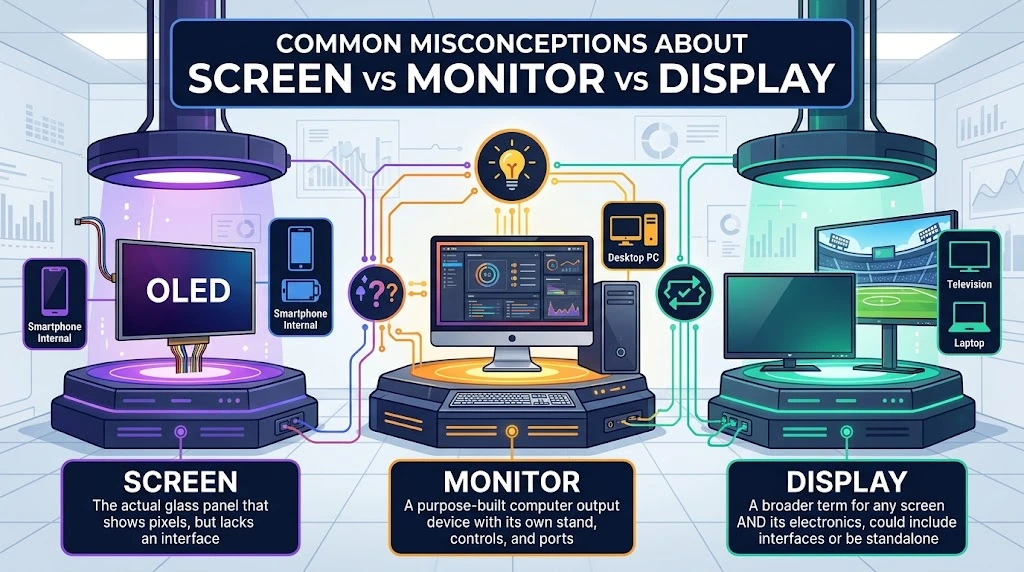
“Monitor and Display Mean Exactly the Same Thing”
They can overlap, but they aren’t always interchangeable.
A monitor is normally a complete dedicated device.
Display is a broader term that can refer to the technology, panel, or visual-output system.
That’s why a phone has a display but isn’t normally called a monitor.
Quick Decision Guide
When you’re stuck between terminology or shopping categories, use this shortcut:
Need a standalone computer device?
→ Look for a monitor.
Talking about the visible viewing surface?
→ Use screen.
Talking about OLED, LCD, IPS, resolution, HDR, or panel technology?
→ Display is usually the more useful technical term.
Buying a desktop display for gaming?
→ Compare monitor specifications.
Talking about your phone?
→ “Screen” and “display” both work naturally.
Talking about the technology inside that phone?
→ “Display” is more precise.
Frequently Asked Questions
What is the difference between a screen and a monitor?
A screen generally refers to the visible area where images appear. A monitor usually refers to the complete standalone device that displays computer output.
A monitor has a screen, but many screens aren’t monitors.
Is a monitor a display?
Yes. A monitor contains a display system.
However, the word display is broader. A smartphone, laptop, smartwatch, television, and car dashboard can all contain displays without being monitors.
Is a laptop screen a monitor?
In everyday American English, people usually call it a laptop screen or laptop display, not a monitor.
A separate external monitor can connect to the laptop.
Can a TV function as a computer monitor?
Yes.
A modern TV can connect to a computer through a compatible video interface. Whether it makes a good desktop monitor depends on its resolution, pixel density, refresh rate, input latency, text handling, and physical size.
Are LED monitors actually LCD monitors?
In most consumer products marketed as “LED monitors,” yes.
The LCD panel uses LEDs as the backlight. LED is therefore describing the illumination system rather than replacing LCD as the panel technology.
What is the difference between LCD and OLED?
LCD uses liquid crystals to control light from a backlight.
OLED uses self-emissive pixels that produce their own light.
That fundamental difference affects contrast, black levels, response behavior, power characteristics, and product design.
Which is better: LCD or OLED?
The answer depends on the use case.
OLED can provide extremely deep blacks, high contrast, and fast response. LCD remains highly versatile and can offer strong brightness, affordability, and a wide range of configurations.
Your environment and workload should determine which characteristics matter most.
What is the difference between resolution and screen size?
Screen size describes the physical diagonal dimension of the display.
Resolution describes how many pixels the display contains.
A 27-inch 4K display and a 55-inch 4K display have the same number of pixels but very different pixel densities.
Does a higher refresh rate improve image quality?
It can improve the appearance of motion and responsiveness, especially during gaming and other fast-moving content.
However, refresh rate doesn’t directly determine color accuracy, resolution, contrast, or black levels.
A 240 Hz monitor isn’t automatically a better monitor for every task.
What display type is best for gaming?
Gaming monitors should be evaluated based on the complete combination of:
- Refresh rate
- Resolution
- Response behavior
- Input latency
- VRR support
- HDR capability
- GPU performance
- Panel characteristics
There isn’t one display technology that makes sense for every gamer.
What display is best for office work?
Look for a display that gives you sharp text, comfortable viewing, enough workspace, and useful ergonomics.
For many users, resolution and physical size matter more than extreme gaming specifications.
Why do two displays with the same resolution look different?
Resolution is only one part of image quality.
Two displays with identical pixel counts can differ in:
- Pixel density
- Panel technology
- Brightness
- Contrast
- Color gamut
- Calibration
- Viewing angles
- Surface coating
- HDR capability
- Processing
That’s why comparing only “1080p,” “1440p,” or “4K” doesn’t tell the whole story.
Conclusion: Screen vs Monitor vs Display Explained
The screen vs monitor vs display debate becomes much easier once you stop treating the three words as completely separate categories.
A screen usually emphasizes the visible surface where you see information.
A monitor usually describes a complete standalone display device, particularly one used with a desktop computer.
A display is the broadest term. It can describe the technology, panel, component, or system responsible for presenting visual information.
The three concepts overlap constantly.
A desktop monitor can contain a display and a screen. A laptop can have a display and screen without being called a monitor. A smartphone can use an OLED display behind a touch-sensitive screen while remaining a completely different kind of device.
The terminology matters most when you’re making a purchase or discussing technical specifications.
Instead of asking which label sounds better, focus on what the device actually needs to do.
For work, consider resolution, text clarity, ergonomics, and connectivity.
For gaming, examine refresh rate, response behavior, VRR, latency, and GPU capability.
For creative work, prioritize color accuracy, gamut, calibration, resolution, and HDR.
And when you’re simply talking about the glass area you look at every day, screen is usually the word that comes naturally.
Once you understand those distinctions, the world of displays stops looking like a pile of confusing technical labels and starts making much more sense.